Outdated charts are a real navigation hazard. Waterways change. Sandbars shift. New hazards appear, buoy positions get updated, and aids to navigation get moved, replaced, or decommissioned. A chartplotter running stale chart data is giving you an incomplete picture of the water in front of you.
For most recreational boaters with a Garmin chartplotter, keeping charts current is straightforward once you know which method fits your setup. Garmin provides two primary update paths: wirelessly through the ActiveCaptain app on your phone, or through Garmin Express software on a computer. Both are free to use, and each has different strengths depending on your situation.
This guide covers both methods in detail, along with how physical SD card updates work, how to troubleshoot common problems, and how often you should be doing this.
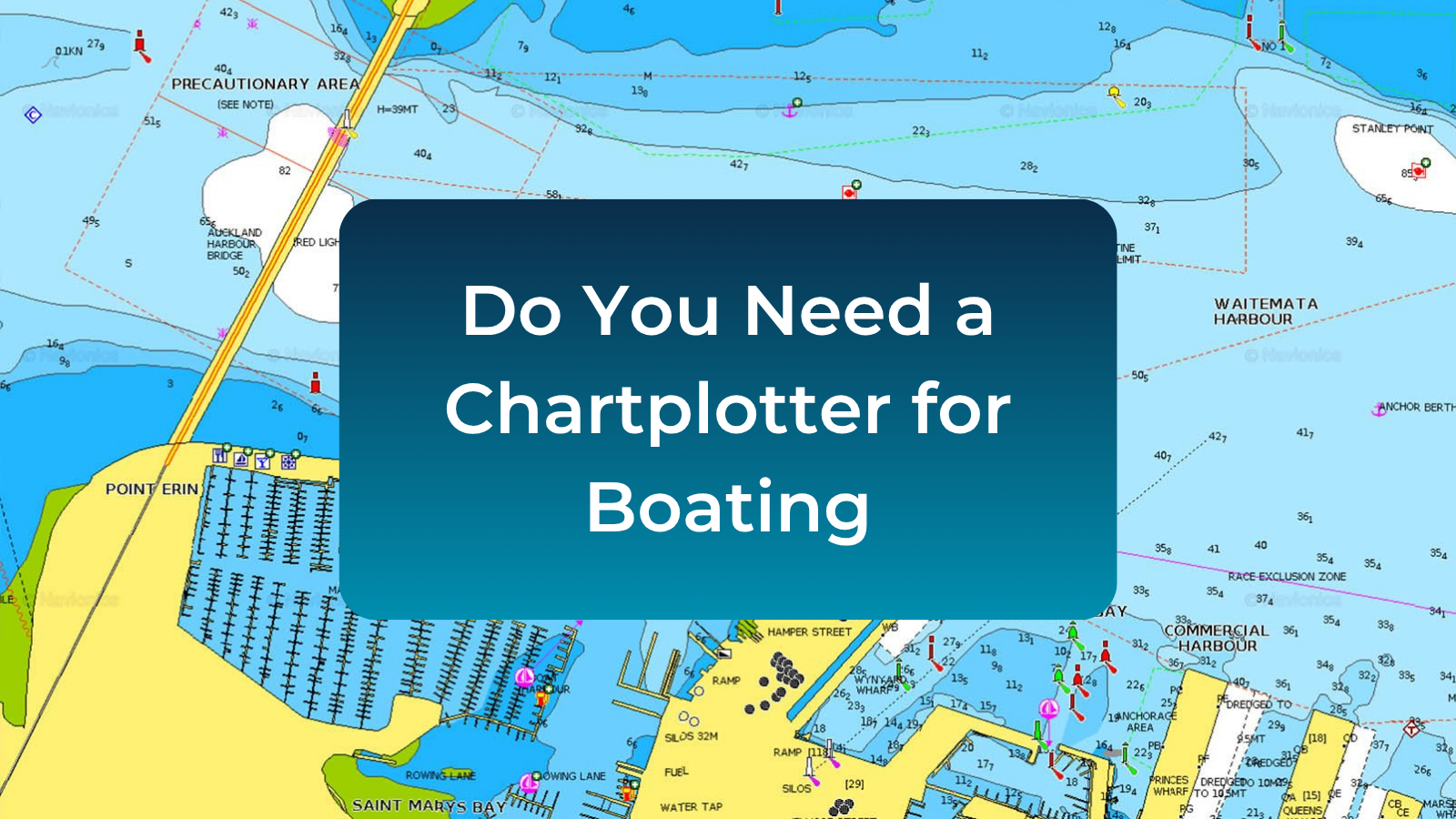
Image courtesy of https://www.garmin.com/en-CA/c/marine-cartography/third-party-marine-maps/
Why Chart Updates Matter
Charts are not a one-time installation. Waterways are actively surveyed and updated on a regular basis, and the data behind your chartplotter display can become outdated faster than most boaters realize.
Hydrographic authorities issue corrections covering newly charted shoals, adjusted buoy positions, updated depth surveys, revised harbor approaches, changed traffic separation schemes, and updated restricted zones. For Garmin users specifically, chart updates also frequently include improvements to the underlying chartplotter software, bug fixes, and performance improvements to features like Auto Guidance and sonar.
For most recreational boaters, updating charts at least once per season is a reasonable baseline. Boaters who frequent coastal areas with active dredging, shifting sandbars, or regular hydrographic activity may want to check for updates more often.
Before You Start: What You Need to Know
Chart Subscriptions
Garmin chart updates for your chartplotter are tied to your chart subscription. If your BlueChart g3 or LakeVü g3 subscription is active, updates are included at no additional cost. If your subscription has lapsed, you will need to renew it before new updates become available to download. This is a commonly overlooked detail that stops the update process before it starts.
Device Compatibility
Your chartplotter model determines which update method works best. Most modern Garmin ECHOMAP and GPSMAP series units with built-in Wi-Fi support the ActiveCaptain wireless method. Older units without Wi-Fi are best updated using Garmin Express on a computer with an SD card.
Garmin Account
You will need a free Garmin account for both methods. If you do not already have one, create it at garmin.com before beginning.
Method 1: ActiveCaptain App (Wireless, Recommended for Most Boaters)
The ActiveCaptain method is the most convenient option for most modern Garmin users. It handles the process entirely through your phone over Wi-Fi with no computer required.
What You Need
- A compatible Garmin chartplotter with built-in Wi-Fi (most current ECHOMAP and GPSMAP series units)
- A dedicated ActiveCaptain SD card inserted in your chartplotter
- The ActiveCaptain app installed on your iOS or Android phone or tablet
- A Garmin account
- A Wi-Fi internet connection on your mobile device
Step 1: Install the ActiveCaptain App
Download the ActiveCaptain app from the App Store or Google Play and sign in to your Garmin account. If this is your first time using it, follow the setup prompts to register your chartplotter.
Step 2: Insert the ActiveCaptain SD Card Into Your Chartplotter
This step is critical and frequently missed. The ActiveCaptain wireless transfer method requires a dedicated ActiveCaptain SD card physically inserted into your chartplotter. The card is the medium that receives chart data from your phone and delivers it to the unit. Without it in place, the wireless update cannot complete. If you do not have a dedicated ActiveCaptain SD card, you can set one up through the app the first time you connect.
Step 3: Power On Your Chartplotter and Enable Wi-Fi
Turn on your chartplotter and navigate to the Wi-Fi settings to enable it. The chartplotter broadcasts its own Wi-Fi network that your phone will connect to during the transfer step.
Step 4: Download Chart Updates to Your Phone
With your phone connected to your regular internet connection, your home network or marina Wi-Fi rather than the chartplotter network, open ActiveCaptain and go to the OneChart section, then select My Charts. The app will display any available chart updates. Download them to your phone over your internet connection.
For large chart regions this can take several minutes. To save time and storage, you can choose to download only the specific area you need rather than an entire regional package.
Step 5: Transfer to the Chartplotter
Once the download is complete, switch your phone’s Wi-Fi connection to the chartplotter’s network. ActiveCaptain will detect the unit and transfer the chart data from your phone to the SD card. Once the transfer is complete, the chartplotter installs the update automatically from the card.
After the update is complete, reconnect your phone to your regular internet connection. The app will resume automatic update checking whenever you open it while connected.
Pros and Cons of the ActiveCaptain Method
Pros: No computer required. Works entirely from your phone or tablet. Updates download automatically whenever you open the app while connected to the internet.
Cons: Slower than Garmin Express for very large chart packages. Requires a Wi-Fi-capable chartplotter. Requires the dedicated ActiveCaptain SD card to be in place before transfer begins.
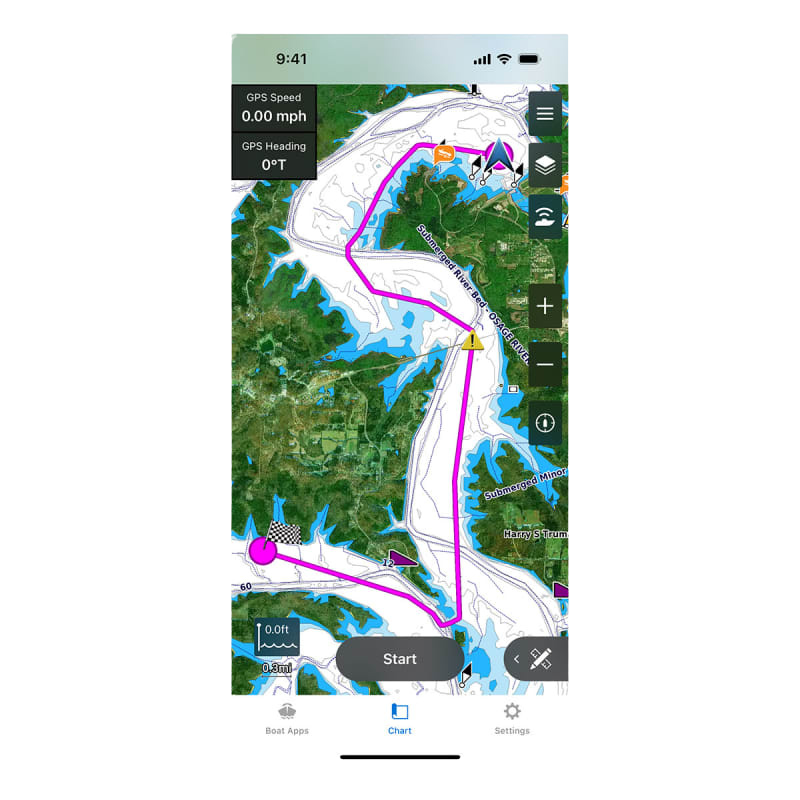
Image coutesy of https://www.garmin.com/en-US/p/573254/
Method 2: Garmin Express on Your Computer
Garmin Express is desktop software Garmin provides free for managing updates across all their devices. For marine chart updates, it is particularly useful for large chart packages or chartplotters that do not have Wi-Fi capability.
What You Need
- A Windows or Mac computer
- Garmin Express installed (free download from garmin.com/express)
- A microSD card compatible with your chartplotter (check your unit’s documentation for size and format requirements)
- A card reader for your computer
- A Garmin account
Step 1: Install Garmin Express
Download and install Garmin Express from Garmin’s website. Open the program and sign in to your Garmin account.
Step 2: Insert the SD Card Into Your Computer
Insert the SD card into your computer’s card reader. Garmin Express will use this card as the transfer medium for delivering chart data to your chartplotter. Make sure the card is formatted correctly for your unit. FAT32 is standard for most Garmin marine devices.
Step 3: Add Your Device in Garmin Express
Click Add a Device in Garmin Express and follow the prompts to identify your chartplotter model. If prompted, register the device with your Garmin account.
Step 4: Check for Updates and Download
Garmin Express will detect any available updates for your device, including chart updates and software updates. Select Install All to begin downloading to the SD card. Large chart packages can take substantial time depending on your internet connection speed.
Step 5: Safely Remove the Card and Insert Into Your Chartplotter
Once the download is complete, safely eject the SD card from your computer. Insert it into your chartplotter. Power on the device and it will automatically detect the update. Follow the on-screen prompts to complete installation. Keep the chartplotter powered throughout the process to avoid interruption.
Step 6: Verify the Update
Once installation is complete, go to your chartplotter’s System Information or About menu to confirm the chart version number has updated. Pull up your navigation area on the chart to verify it is loading correctly.
Pros and Cons of the Garmin Express Method
Pros: Faster than ActiveCaptain for very large chart packages. Works with older chartplotters that lack Wi-Fi. More reliable on slow or congested marina internet connections.
Cons: Requires a computer. More steps involved. Requires carrying an SD card between your boat and wherever your computer is located.
Method 3: Pre-Loaded Chart Update Cards
Some Garmin retailers sell pre-loaded SD cards with chart data for specific regions. This is a less common approach but can be useful if you do not have reliable internet access at the marina or if you are updating multiple devices at once.
These cards are plug-and-play: insert the card, power on the chartplotter, and follow the prompts. The main limitation is that the data on the card is only current as of the card’s manufacture date, so you may not receive the most recent available update. Cost is also higher than the free software-based methods.
Troubleshooting Common Issues
Device Not Detected in Garmin Express
Confirm the SD card is properly inserted and formatted to FAT32. Try a different card reader if your computer does not recognize the card. Check that you are adding the correct chartplotter model in the software.
Update Stalls or Fails Midway
This usually happens due to a dropped internet connection during the download phase or insufficient storage space on the SD card. Use a card with adequate storage, ensure a stable connection, and restart the download from the beginning.
Chartplotter Does Not Recognize the Update Card
The SD card may need to be reformatted to FAT32. Some older Garmin units are limited to 32GB cards or smaller and will not read larger cards. Check your chartplotter’s documentation for the supported card specifications.
ActiveCaptain Not Connecting to Chartplotter
Confirm the chartplotter’s Wi-Fi is enabled and actively broadcasting. Make sure you are connecting your phone to the chartplotter’s network rather than your home or marina router during the transfer step. These are two separate connections used at two different stages of the process.
Chart Subscription Required Error
Your current chart subscription may have lapsed. Check your Garmin account at garmin.com to view subscription status and renew if needed before retrying the update.
Slow Download in ActiveCaptain
Downloading only the specific region you need rather than a full chart package is the quickest fix. For large complete chart downloads, Garmin recommends using Garmin Express on a computer instead of the mobile app.
Best Practices for Keeping Charts Current
Update your chartplotter software at the same time you update charts. Garmin releases firmware updates for chartplotters regularly, and running outdated software can cause performance issues even with current chart data in place.
Back up your waypoints, routes, and tracks before any major update. While updates rarely affect saved navigation data, exporting it to the SD card beforehand takes two minutes and prevents potential loss.
Update using a reliable Wi-Fi connection rather than cellular data wherever possible. Chart files are large, and mobile data downloads can be slow and may incur charges depending on your plan.
Check for updates at the start of each boating season and again mid-season if you frequent areas that change regularly. Coastal and river systems, active inlets, and areas with regular dredging are especially prone to changes between seasons.
Frequently Asked Questions
Are Garmin chart updates free?
Updates are included at no additional cost while your chart subscription is active. If your BlueChart g3 or LakeVü g3 subscription has lapsed, you will need to renew access before new updates become available.
How do I know which chart version is currently installed?
On most Garmin chartplotters, navigate to Settings, then System Information or About. The current chart version and software version will both be listed there.
Can I update charts without a computer?
Yes. The ActiveCaptain app method requires only your phone and the dedicated ActiveCaptain SD card in your chartplotter. No computer is involved, as long as your unit supports Wi-Fi connectivity.
How long do chart updates take?
It depends on the size of the chart region and your internet speed. Small regional updates may complete in a few minutes. Full chart packages for large areas can take 30 minutes or more.
Will updating charts delete my saved waypoints and routes?
In most cases no. However, it is always worth exporting your saved data to an SD card before any major update as a precaution.
Do I need to update if I only boat in the same local waters?
Even familiar local waters can see changes in buoy placement, newly charted hazards, or updated depth surveys between seasons. Annual updates are worthwhile regardless of how well you know your home water.
What if my chartplotter model is very old and no longer supported?
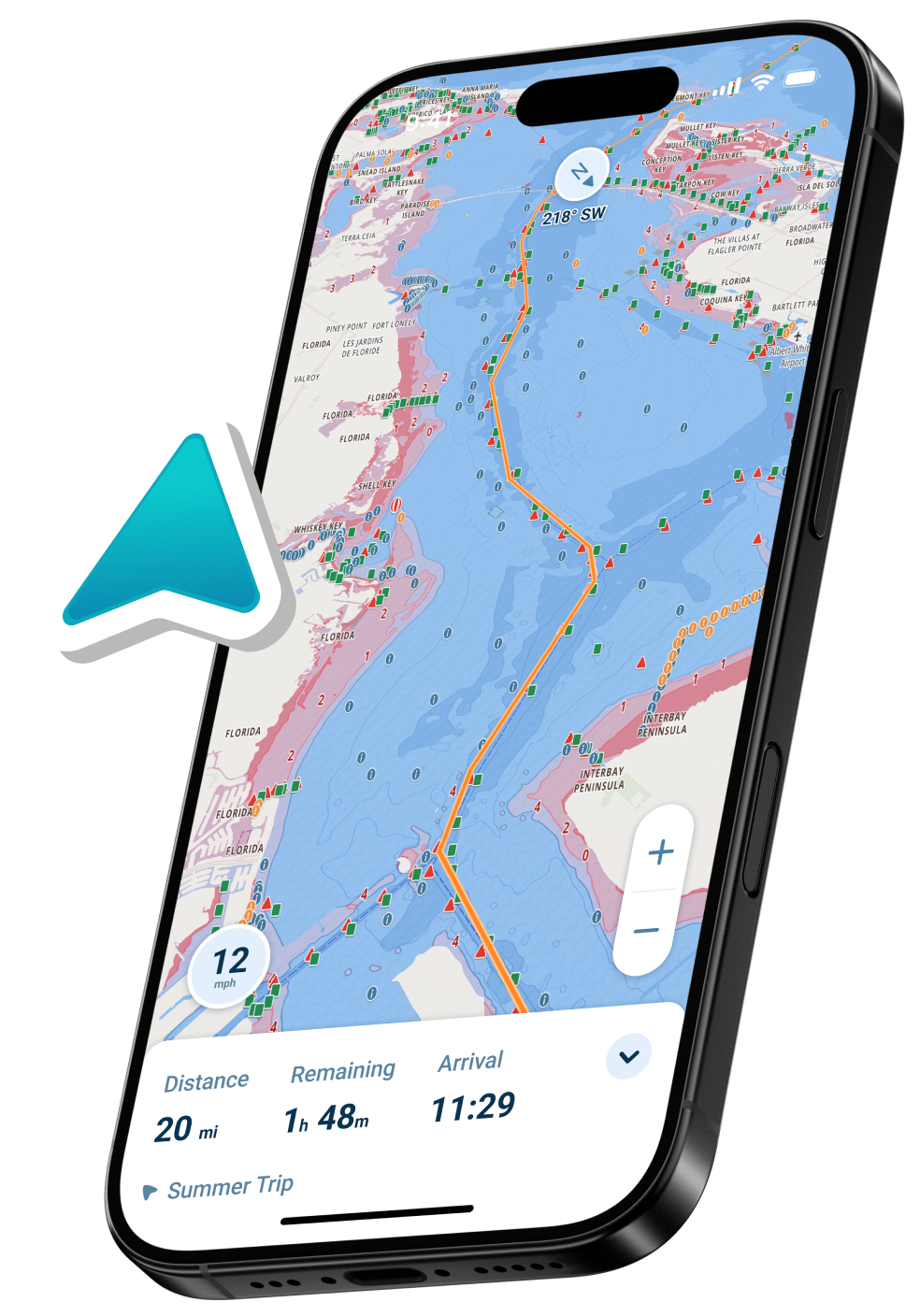
Older Garmin units can eventually lose active chart update support. Check your model on Garmin’s support site to confirm current status. If your unit is no longer receiving updates, supplementing with a modern navigation app on your phone is a practical option for staying current with chart data. Wavve Boating uses automatically updated chart data and requires no manual update management on your end.
What is the difference between a chart update and a software update?
A chart update refreshes the underlying nautical data including depths, hazards, and aids to navigation. A software update improves how the chartplotter operates, adds new features, and fixes bugs. Both should be kept current and Garmin Express handles both in a single process.
—————————–
Keeping your Garmin charts updated is one of the simplest steps you can take toward safer, more confident navigation. The process takes 15 to 30 minutes and requires no technical expertise.
Whether you use the ActiveCaptain app on your phone or Garmin Express on a computer, the result is the same: your chartplotter displays current, accurate data that reflects what is actually on the water.
Make it part of your start-of-season routine and you will rarely have to think about it again.