Planning a Boat Route on Your Computer and Following It on Your iPhone With Wavve
Plan the route in Wavve’s Free Web Chart Viewer on a computer, save it, and it appears in the Wavve app on your iPhone. Routes sync through your Wavve account, so there is no file to move between the two.
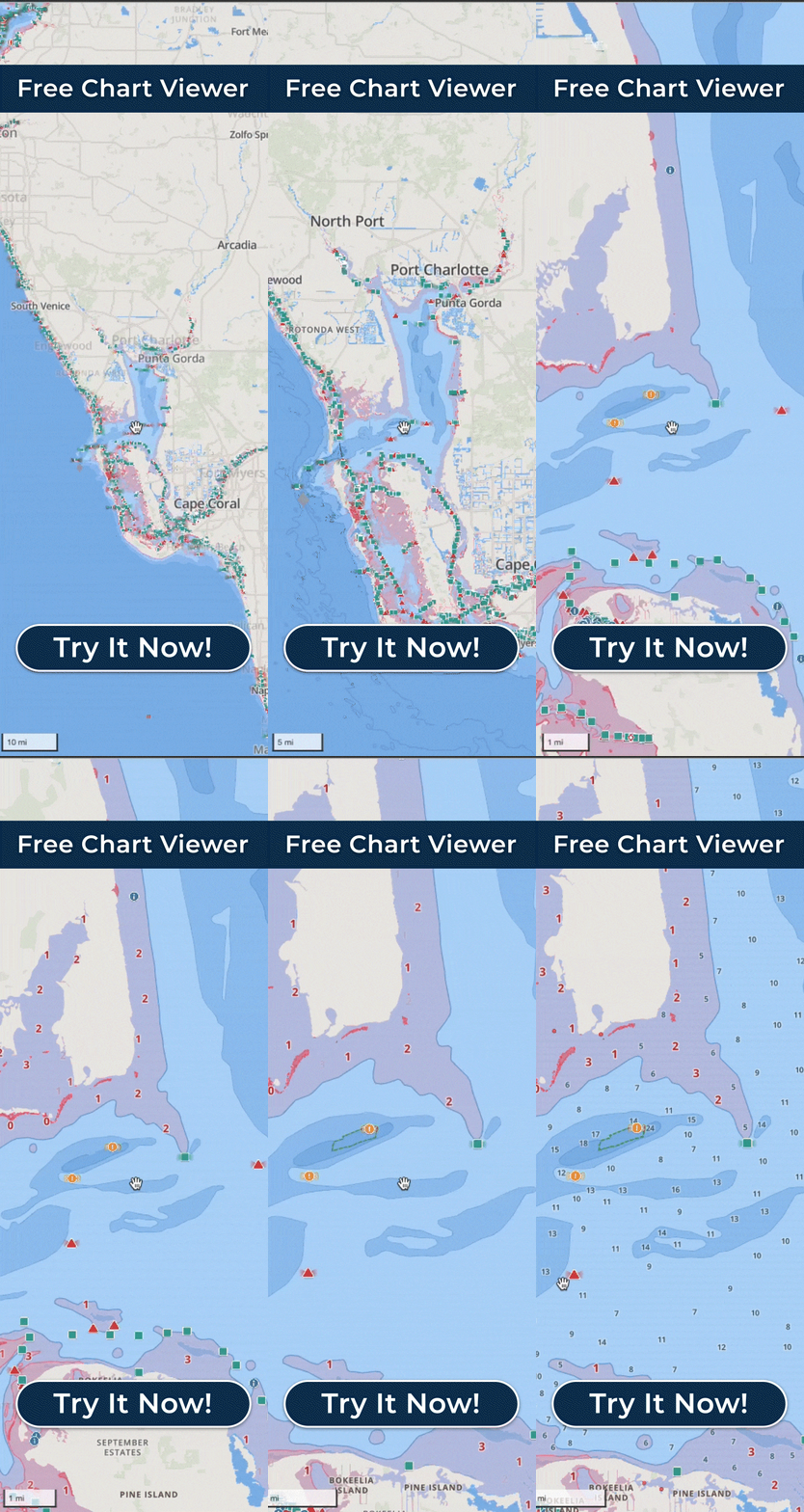
The viewer runs in a web browser on a desktop or laptop. There is nothing to install. It is a browser tool, not a desktop app, and some features of the mobile app are not in it.
What the computer adds is room. More of the water fits on the screen at once, which makes it easier to compare channels before you settle on one. The viewer also shows more detailed waypoint information, including waypoint coordinates, which the mobile app does not display. Exploring the charts and planning routes in the browser is free, while following them on the iPhone runs on a Wavve membership.
Start and end points can be set in several ways. Type in coordinates, drop a pin, or search by keyword. Swap the start and the end to plan the return leg. Wavve Points, the community-shared spots for marinas, fuel, boat ramps and beaches, help when the destination is a place rather than a coordinate.
Routes come two ways. AutoRouting builds a route between two points around obstacles, through channels and using water depths, and every AutoRoute Mode (Prefer Channels, Most Direct, Balanced) accounts for your boat’s draft. Manual Routing lets you set the course yourself, with waypoints placed at the start or the end of a route.
Each AutoRoute shows total distance and estimated travel time. Weather and water-level conditions are available while you plan. A fuel estimate is optional.
A saved route can carry a note and can be marked as a favorite, which keeps a regular run easy to find on the phone later.
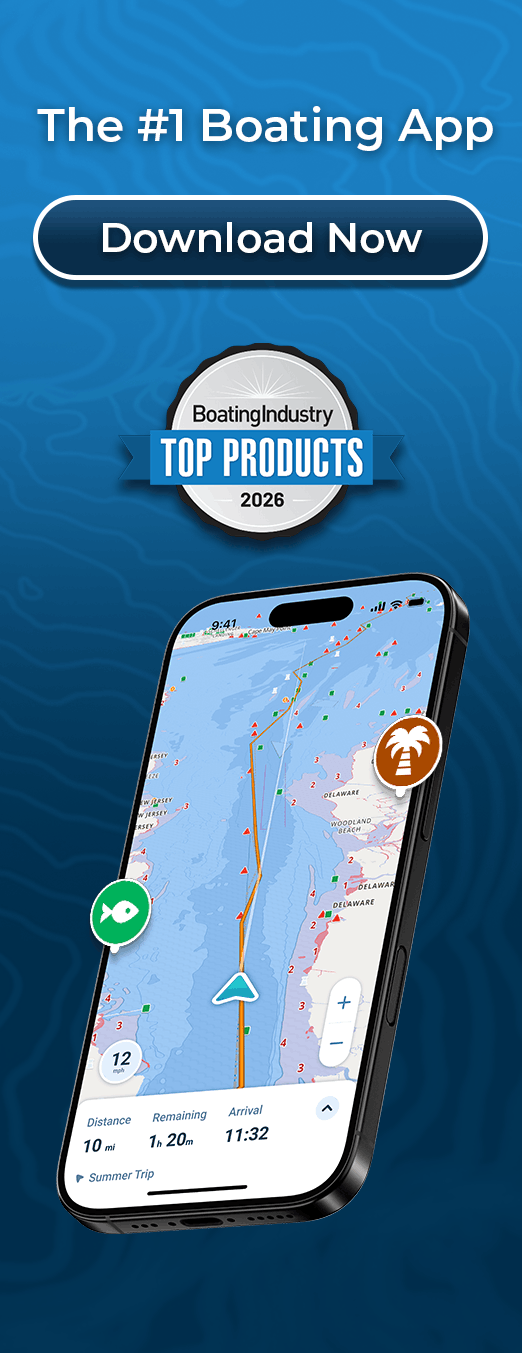
On the iPhone, open the saved route and follow it turn by turn. The map shows your live GPS position against the route as you run it. Because the route is saved to your account rather than to a boat’s hardware, it comes along when you step onto a friend’s boat or a rental.
AutoRoutes are built on Wavve’s servers, so building one needs a connection. A route planned at home is already saved before you lose signal. Download the area with Offline Maps before you leave service too, and the charts and your GPS position keep working with no cell service.
Trip Recordings sync through the same account. A track recorded on the iPhone during the day can be reviewed later in the viewer on the larger screen.
Saved AutoRoutes, Manual Routes and Trip Recordings can be exported as GPX files. That is how a route reaches a compatible chartplotter, since Wavve does not connect to chartplotters directly.